Revolutionizing Web Performance: Using Gemini 3.1-Pro-Preview for AI-Generated SVGs
Revolutionizing Web Performance: Using Gemini 3.1-Pro-Preview for AI-Generated SVGs
Web animations have long been a double-edged sword for developers. While they drastically enhance user experience and engagement, relying on heavy animation libraries can bloat your bundle size, increase load times, and drag down your Core Web Vitals. Enter AI-generated SVGs, a modern web performance hack that is changing how we build user interfaces.
A prime example of this paradigm shift is the Devcraft repository by me. Designed as a software development consultancy website, this project leans heavily on the bleeding-edge Gemini 3.1-Pro-Preview model to generate intricate, lightweight SVG assets. By doing so, it entirely bypasses the need for time-consuming and resource-heavy web animations.
Let’s dive into how this repository is structured, the tooling driving it, and how the Vite ecosystem takes SVG management to the next level.
Exploring the Devcraft Repository
The devcraft repository is structured as a modern, lightweight frontend application bootstrapped via AI Studio. With a clear focus on performance and minimal overhead, the project utilizes TypeScript for safe, predictable code, standard HTML/CSS, and relies on modern configuration files (tsconfig.json, vite.config.ts) to manage its build process.
Rather than spending hours manually keyframing complex UI sequences or loading bulky external libraries like Lottie or Framer Motion, the developer utilized Gemini 3.1-Pro-Preview to design the visual layer.
Replacing Heavy Web Animations with AI-Generated SVGs
Complex web animations often require heavy JavaScript execution, leading to:
- Render-blocking issues during the initial page load.
- High CPU usage, which drains battery life on mobile devices.
- Longer development times spent tweaking keyframes and states.
By using Gemini 3.1-Pro-Preview, the Devcraft repository highlights a smarter workflow. The developer prompted the AI to generate complex, scalable vector graphics (SVGs) that inherently carry enough visual depth and structure to replace traditional animations.
The Performance Benefits:
- Zero JS Overhead: SVGs are rendered natively by the browser’s graphics engine, keeping the main thread free.
- Instant Loading: Vector graphics consist of XML code, meaning they have a fraction of the file size compared to GIFs, videos, or JS-driven animation bundles.
- Massive Time Savings: Instead of manually designing and timing animations, Gemini 3.1-Pro-Preview instantly generates code-ready vector assets tailored specifically to the prompt. Developers can even ask Gemini to embed native CSS transitions directly inside the SVG code for lightweight, zero-JS interactivity.
Prompts to Generate SVGs
With the improvements to the latest Gemini model, we can now generate complex, animated, and structurally sound SVG graphics purely through text.
For example, a simple prompt like:
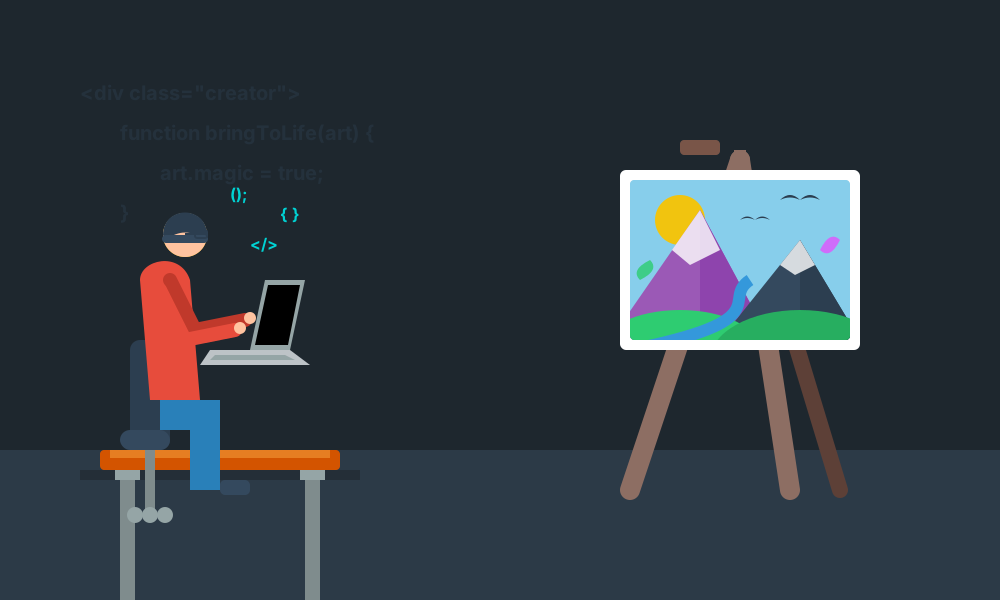
Create an svg of a man typing on a computer and then bringing an painting to life, flat ui design.Results in this highly detailed, animated graphic:
Best Prompting Techniques for SVGs & Images
Generating raw SVG code is fundamentally different from prompting image generators like Midjourney or DALL-E. Instead of just describing what you want to see, you must also describe how it should be built.
Here are the best practices for getting production-ready SVGs:
1. Define the Exact Aesthetic & Style
AI models know a vast array of design systems. If you don’t specify a style, you’ll likely get a messy mix of gradients and strokes. Use specific design keywords:
- Good:
Make a cool illustration of a server. - Better:
Create an SVG illustration of a cloud server using a Flat UI design style, utilizing simple geometric shapes, clean solid colors, and no outlines. - Keywords to try: Flat UI, Corporate Memphis, Isometric, Line Art, Neumorphism, Material Design, Pastel Color Palette, Monochromatic.
2. Lay Out the Composition Spatiality
LLMs need to know where to place elements within the coordinate system (viewBox). Guide the layout by explicitly mentioning positioning.
- Example:
"Split the canvas into two halves. On the left side (x=0 to 400), place the user working on a laptop. On the right side (x=400 to 800), place a floating holographic dashboard."
3. Dictate the Technical Constraints
To ensure your SVG drops perfectly into your web project without breaking, set the technical ground rules in your prompt.
- Specify the ViewBox:
"Use a viewBox of 0 0 1000 600." - Styling Methods:
"Use inline CSS enclosed in a <style> tag."or"Only use standard presentation attributes (fill, stroke) without external CSS." - Font Handling:
"Use system fonts (system-ui, sans-serif) so no external web fonts are required."
4. Color Palettes and Lighting (Filters)
If you want a specific mood, give the AI exact Hex codes or describe the lighting. Modern LLMs are excellent at applying SVG filters like drop shadows and glows if you ask for them.
- Example:
"Use a dark mode color palette (Background: #0F172A, Accents: #38BDF8 and #F472B6). Add an SVG <feGaussianBlur> filter to create a glowing neon effect behind the data nodes."
5. Orchestrating CSS Animations
The latest models excel at writing complex @keyframes animations directly into the SVG. To get smooth, logical animations, describe the timeline and easing.
- Actionable Prompting:
"Animate the SVG using CSS. Make the gear in the center spin infinitely using a linear timing function. Have the checkmark pop in after a 2-second delay using a cubic-bezier bouncy easing function. Ensure the animation loops seamlessly." - Grouping: Remind the AI to group elements for animation:
"Wrap the bird elements in a <g> tag and apply a floating transform animation to the group."
6. The “Layered Iteration” Technique
If you want something incredibly complex, don’t ask for it all in one prompt. Build it in layers:
- Prompt 1 (Base):
"Create a flat UI SVG of an office desk with a computer." - Prompt 2 (Additions):
"Great. Now add a coffee cup on the right with animated steam rising from it." - Prompt 3 (Refinements):
"Fix the steam animation so it fades to opacity 0 before looping, and change the background to a soft pastel yellow."
Summary Cheat Sheet for SVG Prompting
When crafting your next prompt, try to fill in these blanks:
Create an SVG of [Subject] doing [Action]. Use a [Design Style] aesthetic with a [Specific Color Palette]. Set the viewBox to [Dimensions]. Ensure the composition features [Element A] on the left and [Element B] on the right. Add CSS animations so that [Element] does [Specific Movement] with a [Delay/Easing]. Keep the code clean, use
<g>tags for grouping, and rely only on system fonts.
Tooling: Vite and SVG Optimization
Under the hood, devcraft uses cutting-edge frontend tooling to ensure these AI-generated assets are delivered as efficiently as possible.
Vite: The Build Tool of Choice
The presence of vite.config.ts confirms that Vite is the backbone of this project. Vite offers incredibly fast Hot Module Replacement (HMR) during development and utilizes Rollup for highly optimized, tree-shaken production builds. For a project relying heavily on detailed, AI-generated SVGs, Vite’s fast compilation and lightweight output are perfect.
Vite Packages for SVG Management
Handling raw SVGs can sometimes clutter the DOM or lead to caching issues. Within the Vite ecosystem, developers typically leverage specific Vite packages to streamline SVG implementation:
vite-svg-loader/vite-plugin-svgr: These plugins are game-changers. They allow developers to import AI-generated SVGs directly as reusable UI components. This means you can easily manipulate, style, and scale the AI’s output using standard frontend props.- SVGO (SVG Optimizer): AI models like Gemini are incredibly powerful, but they can occasionally generate SVGs with redundant XML tags, empty groups, or unnecessary metadata. Vite can seamlessly pipe SVGs through SVGO plugins to minify and clean the AI-generated code before it reaches the production build.
How to Run the Devcraft Project
If you want to explore the repository yourself and see AI integration in action, the local setup is straightforward:
- Ensure Node.js is installed on your machine.
- Clone the repository and install dependencies with
npm install. - Create an
.env.localfile and set yourGEMINI_API_KEYto connect to the Gemini API. - Run
npm run devto spin up the local Vite server.
Check Out the Live Preview
The Devcraft repository is a testament to how developers can leverage AI not just for writing boilerplate code, but for actively solving web performance bottlenecks. By swapping out heavy JavaScript animations for Gemini 3.1-Pro-Preview generated SVGs, the result is a lightning-fast, visually appealing digital consultancy site.
🔗 Live Preview Link: https://friendlyuser.github.io/devcraft
For example
<svg class="block w-full h-auto" viewBox="75 20 850 650" role="img" aria-labelledby="agent-chip-title agent-chip-desc" xmlns="http://www.w3.org/2000/svg"> <title id="agent-chip-title">Flue agent architecture</title> <desc id="agent-chip-desc">An isometric agent harness powered by Pi, stacked above the Flue runtime.</desc> <defs> <filter id="chip-shadow" x="-20%" y="-30%" width="140%" height="170%"> <feDropShadow dx="0" dy="7" stdDeviation="8" flood-color="#111827" flood-opacity="0.09"></feDropShadow> </filter> </defs> <path d="M500 54L866 264V384L500 594L134 384V264Z" fill="#fff" filter="url(#chip-shadow)"></path> <path d="M134 319L500 529L866 319V384L500 594L134 384Z" fill="#f8fafc" stroke="#cbd5e1" stroke-width="2" stroke-linejoin="round"></path> <path d="M134 319L500 529V594L134 384Z" fill="#f1f5f9" stroke="#cbd5e1" stroke-width="2" stroke-linejoin="round"></path> <path d="M500 529L866 319V384L500 594Z" fill="#e9eef5" stroke="#cbd5e1" stroke-width="2" stroke-linejoin="round"></path> <text x="154" y="274.5" fill="#a8b2c1" font-family="JetBrains Mono, monospace" font-size="19" font-weight="600" letter-spacing="1.25" dominant-baseline="middle" transform="skewY(30)">RUNTIME</text> <text x="516" y="851.5" fill="#a8b2c1" font-family="JetBrains Mono, monospace" font-size="14" font-weight="600" letter-spacing="0.7" text-anchor="start" dominant-baseline="middle" transform="skewY(-30)">SANDBOX · DATABASE · DEPLOYMENT</text> <path d="M500 54L866 264L500 474L134 264Z" fill="#fff" stroke="#d1d5db" stroke-width="2" stroke-linejoin="round"></path> <path d="M134 264L500 474V529L134 319Z" fill="#f9fafb" stroke="#d1d5db" stroke-width="2" stroke-linejoin="round"></path> <path d="M500 474L866 264V319L500 529Z" fill="#f3f4f6" stroke="#d1d5db" stroke-width="2" stroke-linejoin="round"></path> <text x="154" y="217" fill="#b0b6c0" font-family="JetBrains Mono, monospace" font-size="19" font-weight="600" letter-spacing="1.25" dominant-baseline="middle" transform="skewY(30)">HARNESS</text> <text x="516" y="792" fill="#b0b6c0" font-family="JetBrains Mono, monospace" font-size="14" font-weight="600" letter-spacing="0.7" text-anchor="start" dominant-baseline="middle" transform="skewY(-30)">SESSIONS · TOOLS · SKILLS</text> <g class="chip-pixels"> <path class="chip-pixel" d="M500 74L518 84L500 94L482 84Z" fill="#3b82f6" style="animation-delay: -0s;"></path><path class="chip-pixel" d="M521 86L539 96L521 106L503 96Z" fill="#3b82f6" style="animation-delay: -1.87s;"></path><path class="chip-pixel" d="M542 98L560 108L542 118L524 108Z" fill="#3b82f6" style="animation-delay: -0.8500000000000001s;"></path><path class="chip-pixel" d="M563 110L581 120L563 130L545 120Z" fill="#3b82f6" style="animation-delay: -2.72s;"></path><path class="chip-pixel" d="M584 122L602 132L584 142L566 132Z" fill="#3b82f6" style="animation-delay: -1.7000000000000002s;"></path><path class="chip-pixel" d="M605 134L623 144L605 154L587 144Z" fill="#3b82f6" style="animation-delay: -0.68s;"></path><path class="chip-pixel" d="M626 146L644 156L626 166L608 156Z" fill="#3b82f6" style="animation-delay: -2.5500000000000003s;"></path><path class="chip-pixel" d="M647 158L665 168L647 178L629 168Z" fill="#3b82f6" style="animation-delay: -1.53s;"></path><path class="chip-pixel" d="M668 170L686 180L668 190L650 180Z" fill="#3b82f6" style="animation-delay: -0.51s;"></path><path class="chip-pixel" d="M689 182L707 192L689 202L671 192Z" fill="#3b82f6" style="animation-delay: -2.3800000000000003s;"></path><path class="chip-pixel" d="M710 194L728 204L710 214L692 204Z" fill="#3b82f6" style="animation-delay: -1.36s;"></path><path class="chip-pixel" d="M731 206L749 216L731 226L713 216Z" fill="#3b82f6" style="animation-delay: -0.34s;"></path><path class="chip-pixel" d="M752 218L770 228L752 238L734 228Z" fill="#3b82f6" style="animation-delay: -2.21s;"></path><path class="chip-pixel" d="M773 230L791 240L773 250L755 240Z" fill="#3b82f6" style="animation-delay: -1.1900000000000002s;"></path><path class="chip-pixel" d="M794 242L812 252L794 262L776 252Z" fill="#3b82f6" style="animation-delay: -0.17s;"></path><path class="chip-pixel" d="M815 254L833 264L815 274L797 264Z" fill="#3b82f6" style="animation-delay: -2.04s;"></path><path class="chip-pixel" d="M479 86L497 96L479 106L461 96Z" fill="#3b82f6" style="animation-delay: -1.1900000000000002s;"></path><path class="chip-pixel" d="M500 98L518 108L500 118L482 108Z" fill="#3b82f6" style="animation-delay: -0.17s;"></path><path class="chip-pixel" d="M521 110L539 120L521 130L503 120Z" fill="#3b82f6" style="animation-delay: -2.04s;"></path><path class="chip-pixel" d="M542 122L560 132L542 142L524 132Z" fill="#3b82f6" style="animation-delay: -1.02s;"></path><path class="chip-pixel" d="M563 134L581 144L563 154L545 144Z" fill="#3b82f6" style="animation-delay: -0s;"></path><path class="chip-pixel" d="M584 146L602 156L584 166L566 156Z" fill="#3b82f6" style="animation-delay: -1.87s;"></path><path class="chip-pixel" d="M605 158L623 168L605 178L587 168Z" fill="#3b82f6" style="animation-delay: -0.8500000000000001s;"></path><path class="chip-pixel" d="M626 170L644 180L626 190L608 180Z" fill="#3b82f6" style="animation-delay: -2.72s;"></path><path class="chip-pixel" d="M647 182L665 192L647 202L629 192Z" fill="#3b82f6" style="animation-delay: -1.7000000000000002s;"></path><path class="chip-pixel" d="M668 194L686 204L668 214L650 204Z" fill="#3b82f6" style="animation-delay: -0.68s;"></path><path class="chip-pixel" d="M689 206L707 216L689 226L671 216Z" fill="#3b82f6" style="animation-delay: -2.5500000000000003s;"></path><path class="chip-pixel" d="M710 218L728 228L710 238L692 228Z" fill="#3b82f6" style="animation-delay: -1.53s;"></path><path class="chip-pixel" d="M731 230L749 240L731 250L713 240Z" fill="#3b82f6" style="animation-delay: -0.51s;"></path><path class="chip-pixel" d="M752 242L770 252L752 262L734 252Z" fill="#3b82f6" style="animation-delay: -2.3800000000000003s;"></path><path class="chip-pixel" d="M773 254L791 264L773 274L755 264Z" fill="#3b82f6" style="animation-delay: -1.36s;"></path><path class="chip-pixel" d="M794 266L812 276L794 286L776 276Z" fill="#3b82f6" style="animation-delay: -0.34s;"></path><path class="chip-pixel" d="M458 98L476 108L458 118L440 108Z" fill="#3b82f6" style="animation-delay: -2.3800000000000003s;"></path><path class="chip-pixel" d="M479 110L497 120L479 130L461 120Z" fill="#3b82f6" style="animation-delay: -1.36s;"></path><path class="chip-pixel" d="M500 122L518 132L500 142L482 132Z" fill="#3b82f6" style="animation-delay: -0.34s;"></path><path class="chip-pixel" d="M521 134L539 144L521 154L503 144Z" fill="#3b82f6" style="animation-delay: -2.21s;"></path><path class="chip-pixel" d="M542 146L560 156L542 166L524 156Z" fill="#3b82f6" style="animation-delay: -1.1900000000000002s;"></path><path class="chip-pixel" d="M563 158L581 168L563 178L545 168Z" fill="#3b82f6" style="animation-delay: -0.17s;"></path><path class="chip-pixel" d="M584 170L602 180L584 190L566 180Z" fill="#3b82f6" style="animation-delay: -2.04s;"></path><path class="chip-pixel" d="M605 182L623 192L605 202L587 192Z" fill="#3b82f6" style="animation-delay: -1.02s;"></path><path class="chip-pixel" d="M626 194L644 204L626 214L608 204Z" fill="#3b82f6" style="animation-delay: -0s;"></path><path class="chip-pixel" d="M647 206L665 216L647 226L629 216Z" fill="#3b82f6" style="animation-delay: -1.87s;"></path><path class="chip-pixel" d="M668 218L686 228L668 238L650 228Z" fill="#3b82f6" style="animation-delay: -0.8500000000000001s;"></path><path class="chip-pixel" d="M689 230L707 240L689 250L671 240Z" fill="#3b82f6" style="animation-delay: -2.72s;"></path><path class="chip-pixel" d="M710 242L728 252L710 262L692 252Z" fill="#3b82f6" style="animation-delay: -1.7000000000000002s;"></path><path class="chip-pixel" d="M731 254L749 264L731 274L713 264Z" fill="#3b82f6" style="animation-delay: -0.68s;"></path><path class="chip-pixel" d="M752 266L770 276L752 286L734 276Z" fill="#3b82f6" style="animation-delay: -2.5500000000000003s;"></path><path class="chip-pixel" d="M773 278L791 288L773 298L755 288Z" fill="#3b82f6" style="animation-delay: -1.53s;"></path><path class="chip-pixel" d="M437 110L455 120L437 130L419 120Z" fill="#3b82f6" style="animation-delay: -0.68s;"></path><path class="chip-pixel" d="M458 122L476 132L458 142L440 132Z" fill="#3b82f6" style="animation-delay: -2.5500000000000003s;"></path><path class="chip-pixel" d="M479 134L497 144L479 154L461 144Z" fill="#3b82f6" style="animation-delay: -1.53s;"></path><path class="chip-pixel" d="M500 146L518 156L500 166L482 156Z" fill="#3b82f6" style="animation-delay: -0.51s;"></path><path class="chip-pixel" d="M521 158L539 168L521 178L503 168Z" fill="#3b82f6" style="animation-delay: -2.3800000000000003s;"></path><path class="chip-pixel" d="M542 170L560 180L542 190L524 180Z" fill="#3b82f6" style="animation-delay: -1.36s;"></path><path class="chip-pixel" d="M563 182L581 192L563 202L545 192Z" fill="#3b82f6" style="animation-delay: -0.34s;"></path><path class="chip-pixel" d="M584 194L602 204L584 214L566 204Z" fill="#3b82f6" style="animation-delay: -2.21s;"></path><path class="chip-pixel" d="M605 206L623 216L605 226L587 216Z" fill="#3b82f6" style="animation-delay: -1.1900000000000002s;"></path><path class="chip-pixel" d="M626 218L644 228L626 238L608 228Z" fill="#3b82f6" style="animation-delay: -0.17s;"></path><path class="chip-pixel" d="M647 230L665 240L647 250L629 240Z" fill="#3b82f6" style="animation-delay: -2.04s;"></path><path class="chip-pixel" d="M668 242L686 252L668 262L650 252Z" fill="#3b82f6" style="animation-delay: -1.02s;"></path><path class="chip-pixel" d="M689 254L707 264L689 274L671 264Z" fill="#3b82f6" style="animation-delay: -0s;"></path><path class="chip-pixel" d="M710 266L728 276L710 286L692 276Z" fill="#3b82f6" style="animation-delay: -1.87s;"></path><path class="chip-pixel" d="M731 278L749 288L731 298L713 288Z" fill="#3b82f6" style="animation-delay: -0.8500000000000001s;"></path><path class="chip-pixel" d="M752 290L770 300L752 310L734 300Z" fill="#3b82f6" style="animation-delay: -2.72s;"></path><path class="chip-pixel" d="M416 122L434 132L416 142L398 132Z" fill="#3b82f6" style="animation-delay: -1.87s;"></path><path class="chip-pixel" d="M437 134L455 144L437 154L419 144Z" fill="#3b82f6" style="animation-delay: -0.8500000000000001s;"></path><path class="chip-pixel" d="M458 146L476 156L458 166L440 156Z" fill="#3b82f6" style="animation-delay: -2.72s;"></path><path class="chip-pixel" d="M479 158L497 168L479 178L461 168Z" fill="#3b82f6" style="animation-delay: -1.7000000000000002s;"></path><path class="chip-pixel" d="M500 170L518 180L500 190L482 180Z" fill="#3b82f6" style="animation-delay: -0.68s;"></path><path class="chip-pixel" d="M521 182L539 192L521 202L503 192Z" fill="#3b82f6" style="animation-delay: -2.5500000000000003s;"></path><path class="chip-pixel" d="M542 194L560 204L542 214L524 204Z" fill="#3b82f6" style="animation-delay: -1.53s;"></path><path class="chip-pixel" d="M563 206L581 216L563 226L545 216Z" fill="#3b82f6" style="animation-delay: -0.51s;"></path><path class="chip-pixel" d="M584 218L602 228L584 238L566 228Z" fill="#3b82f6" style="animation-delay: -2.3800000000000003s;"></path><path class="chip-pixel" d="M605 230L623 240L605 250L587 240Z" fill="#3b82f6" style="animation-delay: -1.36s;"></path><path class="chip-pixel" d="M626 242L644 252L626 262L608 252Z" fill="#3b82f6" style="animation-delay: -0.34s;"></path><path class="chip-pixel" d="M647 254L665 264L647 274L629 264Z" fill="#3b82f6" style="animation-delay: -2.21s;"></path><path class="chip-pixel" d="M668 266L686 276L668 286L650 276Z" fill="#3b82f6" style="animation-delay: -1.1900000000000002s;"></path><path class="chip-pixel" d="M689 278L707 288L689 298L671 288Z" fill="#3b82f6" style="animation-delay: -0.17s;"></path><path class="chip-pixel" d="M710 290L728 300L710 310L692 300Z" fill="#3b82f6" style="animation-delay: -2.04s;"></path><path class="chip-pixel" d="M731 302L749 312L731 322L713 312Z" fill="#3b82f6" style="animation-delay: -1.02s;"></path><path class="chip-pixel" d="M395 134L413 144L395 154L377 144Z" fill="#3b82f6" style="animation-delay: -0.17s;"></path><path class="chip-pixel" d="M416 146L434 156L416 166L398 156Z" fill="#3b82f6" style="animation-delay: -2.04s;"></path><path class="chip-pixel" d="M437 158L455 168L437 178L419 168Z" fill="#3b82f6" style="animation-delay: -1.02s;"></path><path class="chip-pixel" d="M458 170L476 180L458 190L440 180Z" fill="#3b82f6" style="animation-delay: -0s;"></path><path class="chip-pixel" d="M479 182L497 192L479 202L461 192Z" fill="#3b82f6" style="animation-delay: -1.87s;"></path><path class="chip-pixel" d="M500 194L518 204L500 214L482 204Z" fill="#3b82f6" style="animation-delay: -0.8500000000000001s;"></path><path class="chip-pixel" d="M521 206L539 216L521 226L503 216Z" fill="#3b82f6" style="animation-delay: -2.72s;"></path><path class="chip-pixel" d="M542 218L560 228L542 238L524 228Z" fill="#3b82f6" style="animation-delay: -1.7000000000000002s;"></path><path class="chip-pixel" d="M563 230L581 240L563 250L545 240Z" fill="#3b82f6" style="animation-delay: -0.68s;"></path><path class="chip-pixel" d="M584 242L602 252L584 262L566 252Z" fill="#3b82f6" style="animation-delay: -2.5500000000000003s;"></path><path class="chip-pixel" d="M605 254L623 264L605 274L587 264Z" fill="#3b82f6" style="animation-delay: -1.53s;"></path><path class="chip-pixel" d="M626 266L644 276L626 286L608 276Z" fill="#3b82f6" style="animation-delay: -0.51s;"></path><path class="chip-pixel" d="M647 278L665 288L647 298L629 288Z" fill="#3b82f6" style="animation-delay: -2.3800000000000003s;"></path><path class="chip-pixel" d="M668 290L686 300L668 310L650 300Z" fill="#3b82f6" style="animation-delay: -1.36s;"></path><path class="chip-pixel" d="M689 302L707 312L689 322L671 312Z" fill="#3b82f6" style="animation-delay: -0.34s;"></path><path class="chip-pixel" d="M710 314L728 324L710 334L692 324Z" fill="#3b82f6" style="animation-delay: -2.21s;"></path><path class="chip-pixel" d="M374 146L392 156L374 166L356 156Z" fill="#3b82f6" style="animation-delay: -1.36s;"></path><path class="chip-pixel" d="M395 158L413 168L395 178L377 168Z" fill="#3b82f6" style="animation-delay: -0.34s;"></path><path class="chip-pixel" d="M416 170L434 180L416 190L398 180Z" fill="#3b82f6" style="animation-delay: -2.21s;"></path><path class="chip-pixel" d="M437 182L455 192L437 202L419 192Z" fill="#3b82f6" style="animation-delay: -1.1900000000000002s;"></path><path class="chip-pixel" d="M458 194L476 204L458 214L440 204Z" fill="#3b82f6" style="animation-delay: -0.17s;"></path><path class="chip-pixel" d="M479 206L497 216L479 226L461 216Z" fill="#3b82f6" style="animation-delay: -2.04s;"></path><path class="chip-pixel" d="M500 218L518 228L500 238L482 228Z" fill="#3b82f6" style="animation-delay: -1.02s;"></path><path class="chip-pixel" d="M521 230L539 240L521 250L503 240Z" fill="#3b82f6" style="animation-delay: -0s;"></path><path class="chip-pixel" d="M542 242L560 252L542 262L524 252Z" fill="#3b82f6" style="animation-delay: -1.87s;"></path><path class="chip-pixel" d="M563 254L581 264L563 274L545 264Z" fill="#3b82f6" style="animation-delay: -0.8500000000000001s;"></path><path class="chip-pixel" d="M584 266L602 276L584 286L566 276Z" fill="#3b82f6" style="animation-delay: -2.72s;"></path><path class="chip-pixel" d="M605 278L623 288L605 298L587 288Z" fill="#3b82f6" style="animation-delay: -1.7000000000000002s;"></path><path class="chip-pixel" d="M626 290L644 300L626 310L608 300Z" fill="#3b82f6" style="animation-delay: -0.68s;"></path><path class="chip-pixel" d="M647 302L665 312L647 322L629 312Z" fill="#3b82f6" style="animation-delay: -2.5500000000000003s;"></path><path class="chip-pixel" d="M668 314L686 324L668 334L650 324Z" fill="#3b82f6" style="animation-delay: -1.53s;"></path><path class="chip-pixel" d="M689 326L707 336L689 346L671 336Z" fill="#3b82f6" style="animation-delay: -0.51s;"></path><path class="chip-pixel" d="M353 158L371 168L353 178L335 168Z" fill="#3b82f6" style="animation-delay: -2.5500000000000003s;"></path><path class="chip-pixel" d="M374 170L392 180L374 190L356 180Z" fill="#3b82f6" style="animation-delay: -1.53s;"></path><path class="chip-pixel" d="M395 182L413 192L395 202L377 192Z" fill="#3b82f6" style="animation-delay: -0.51s;"></path><path class="chip-pixel" d="M416 194L434 204L416 214L398 204Z" fill="#3b82f6" style="animation-delay: -2.3800000000000003s;"></path><path class="chip-pixel" d="M437 206L455 216L437 226L419 216Z" fill="#3b82f6" style="animation-delay: -1.36s;"></path><path class="chip-pixel" d="M458 218L476 228L458 238L440 228Z" fill="#3b82f6" style="animation-delay: -0.34s;"></path><path class="chip-pixel" d="M479 230L497 240L479 250L461 240Z" fill="#3b82f6" style="animation-delay: -2.21s;"></path><path class="chip-pixel" d="M500 242L518 252L500 262L482 252Z" fill="#3b82f6" style="animation-delay: -1.1900000000000002s;"></path><path class="chip-pixel" d="M521 254L539 264L521 274L503 264Z" fill="#3b82f6" style="animation-delay: -0.17s;"></path><path class="chip-pixel" d="M542 266L560 276L542 286L524 276Z" fill="#3b82f6" style="animation-delay: -2.04s;"></path><path class="chip-pixel" d="M563 278L581 288L563 298L545 288Z" fill="#3b82f6" style="animation-delay: -1.02s;"></path><path class="chip-pixel" d="M584 290L602 300L584 310L566 300Z" fill="#3b82f6" style="animation-delay: -0s;"></path><path class="chip-pixel" d="M605 302L623 312L605 322L587 312Z" fill="#3b82f6" style="animation-delay: -1.87s;"></path><path class="chip-pixel" d="M626 314L644 324L626 334L608 324Z" fill="#3b82f6" style="animation-delay: -0.8500000000000001s;"></path><path class="chip-pixel" d="M647 326L665 336L647 346L629 336Z" fill="#3b82f6" style="animation-delay: -2.72s;"></path><path class="chip-pixel" d="M668 338L686 348L668 358L650 348Z" fill="#3b82f6" style="animation-delay: -1.7000000000000002s;"></path><path class="chip-pixel" d="M332 170L350 180L332 190L314 180Z" fill="#3b82f6" style="animation-delay: -0.8500000000000001s;"></path><path class="chip-pixel" d="M353 182L371 192L353 202L335 192Z" fill="#3b82f6" style="animation-delay: -2.72s;"></path><path class="chip-pixel" d="M374 194L392 204L374 214L356 204Z" fill="#3b82f6" style="animation-delay: -1.7000000000000002s;"></path><path class="chip-pixel" d="M395 206L413 216L395 226L377 216Z" fill="#3b82f6" style="animation-delay: -0.68s;"></path><path class="chip-pixel" d="M416 218L434 228L416 238L398 228Z" fill="#3b82f6" style="animation-delay: -2.5500000000000003s;"></path><path class="chip-pixel" d="M437 230L455 240L437 250L419 240Z" fill="#3b82f6" style="animation-delay: -1.53s;"></path><path class="chip-pixel" d="M458 242L476 252L458 262L440 252Z" fill="#3b82f6" style="animation-delay: -0.51s;"></path><path class="chip-pixel" d="M479 254L497 264L479 274L461 264Z" fill="#3b82f6" style="animation-delay: -2.3800000000000003s;"></path><path class="chip-pixel" d="M500 266L518 276L500 286L482 276Z" fill="#3b82f6" style="animation-delay: -1.36s;"></path><path class="chip-pixel" d="M521 278L539 288L521 298L503 288Z" fill="#3b82f6" style="animation-delay: -0.34s;"></path><path class="chip-pixel" d="M542 290L560 300L542 310L524 300Z" fill="#3b82f6" style="animation-delay: -2.21s;"></path><path class="chip-pixel" d="M563 302L581 312L563 322L545 312Z" fill="#3b82f6" style="animation-delay: -1.1900000000000002s;"></path><path class="chip-pixel" d="M584 314L602 324L584 334L566 324Z" fill="#3b82f6" style="animation-delay: -0.17s;"></path><path class="chip-pixel" d="M605 326L623 336L605 346L587 336Z" fill="#3b82f6" style="animation-delay: -2.04s;"></path><path class="chip-pixel" d="M626 338L644 348L626 358L608 348Z" fill="#3b82f6" style="animation-delay: -1.02s;"></path><path class="chip-pixel" d="M647 350L665 360L647 370L629 360Z" fill="#3b82f6" style="animation-delay: -0s;"></path><path class="chip-pixel" d="M311 182L329 192L311 202L293 192Z" fill="#3b82f6" style="animation-delay: -2.04s;"></path><path class="chip-pixel" d="M332 194L350 204L332 214L314 204Z" fill="#3b82f6" style="animation-delay: -1.02s;"></path><path class="chip-pixel" d="M353 206L371 216L353 226L335 216Z" fill="#3b82f6" style="animation-delay: -0s;"></path><path class="chip-pixel" d="M374 218L392 228L374 238L356 228Z" fill="#3b82f6" style="animation-delay: -1.87s;"></path><path class="chip-pixel" d="M395 230L413 240L395 250L377 240Z" fill="#3b82f6" style="animation-delay: -0.8500000000000001s;"></path><path class="chip-pixel" d="M416 242L434 252L416 262L398 252Z" fill="#3b82f6" style="animation-delay: -2.72s;"></path><path class="chip-pixel" d="M437 254L455 264L437 274L419 264Z" fill="#3b82f6" style="animation-delay: -1.7000000000000002s;"></path><path class="chip-pixel" d="M458 266L476 276L458 286L440 276Z" fill="#3b82f6" style="animation-delay: -0.68s;"></path><path class="chip-pixel" d="M479 278L497 288L479 298L461 288Z" fill="#3b82f6" style="animation-delay: -2.5500000000000003s;"></path><path class="chip-pixel" d="M500 290L518 300L500 310L482 300Z" fill="#3b82f6" style="animation-delay: -1.53s;"></path><path class="chip-pixel" d="M521 302L539 312L521 322L503 312Z" fill="#3b82f6" style="animation-delay: -0.51s;"></path><path class="chip-pixel" d="M542 314L560 324L542 334L524 324Z" fill="#3b82f6" style="animation-delay: -2.3800000000000003s;"></path><path class="chip-pixel" d="M563 326L581 336L563 346L545 336Z" fill="#3b82f6" style="animation-delay: -1.36s;"></path><path class="chip-pixel" d="M584 338L602 348L584 358L566 348Z" fill="#3b82f6" style="animation-delay: -0.34s;"></path><path class="chip-pixel" d="M605 350L623 360L605 370L587 360Z" fill="#3b82f6" style="animation-delay: -2.21s;"></path><path class="chip-pixel" d="M626 362L644 372L626 382L608 372Z" fill="#3b82f6" style="animation-delay: -1.1900000000000002s;"></path><path class="chip-pixel" d="M290 194L308 204L290 214L272 204Z" fill="#3b82f6" style="animation-delay: -0.34s;"></path><path class="chip-pixel" d="M311 206L329 216L311 226L293 216Z" fill="#3b82f6" style="animation-delay: -2.21s;"></path><path class="chip-pixel" d="M332 218L350 228L332 238L314 228Z" fill="#3b82f6" style="animation-delay: -1.1900000000000002s;"></path><path class="chip-pixel" d="M353 230L371 240L353 250L335 240Z" fill="#3b82f6" style="animation-delay: -0.17s;"></path><path class="chip-pixel" d="M374 242L392 252L374 262L356 252Z" fill="#3b82f6" style="animation-delay: -2.04s;"></path><path class="chip-pixel" d="M395 254L413 264L395 274L377 264Z" fill="#3b82f6" style="animation-delay: -1.02s;"></path><path class="chip-pixel" d="M416 266L434 276L416 286L398 276Z" fill="#3b82f6" style="animation-delay: -0s;"></path><path class="chip-pixel" d="M437 278L455 288L437 298L419 288Z" fill="#3b82f6" style="animation-delay: -1.87s;"></path><path class="chip-pixel" d="M458 290L476 300L458 310L440 300Z" fill="#3b82f6" style="animation-delay: -0.8500000000000001s;"></path><path class="chip-pixel" d="M479 302L497 312L479 322L461 312Z" fill="#3b82f6" style="animation-delay: -2.72s;"></path><path class="chip-pixel" d="M500 314L518 324L500 334L482 324Z" fill="#3b82f6" style="animation-delay: -1.7000000000000002s;"></path><path class="chip-pixel" d="M521 326L539 336L521 346L503 336Z" fill="#3b82f6" style="animation-delay: -0.68s;"></path><path class="chip-pixel" d="M542 338L560 348L542 358L524 348Z" fill="#3b82f6" style="animation-delay: -2.5500000000000003s;"></path><path class="chip-pixel" d="M563 350L581 360L563 370L545 360Z" fill="#3b82f6" style="animation-delay: -1.53s;"></path><path class="chip-pixel" d="M584 362L602 372L584 382L566 372Z" fill="#3b82f6" style="animation-delay: -0.51s;"></path><path class="chip-pixel" d="M605 374L623 384L605 394L587 384Z" fill="#3b82f6" style="animation-delay: -2.3800000000000003s;"></path><path class="chip-pixel" d="M269 206L287 216L269 226L251 216Z" fill="#3b82f6" style="animation-delay: -1.53s;"></path><path class="chip-pixel" d="M290 218L308 228L290 238L272 228Z" fill="#3b82f6" style="animation-delay: -0.51s;"></path><path class="chip-pixel" d="M311 230L329 240L311 250L293 240Z" fill="#3b82f6" style="animation-delay: -2.3800000000000003s;"></path><path class="chip-pixel" d="M332 242L350 252L332 262L314 252Z" fill="#3b82f6" style="animation-delay: -1.36s;"></path><path class="chip-pixel" d="M353 254L371 264L353 274L335 264Z" fill="#3b82f6" style="animation-delay: -0.34s;"></path><path class="chip-pixel" d="M374 266L392 276L374 286L356 276Z" fill="#3b82f6" style="animation-delay: -2.21s;"></path><path class="chip-pixel" d="M395 278L413 288L395 298L377 288Z" fill="#3b82f6" style="animation-delay: -1.1900000000000002s;"></path><path class="chip-pixel" d="M416 290L434 300L416 310L398 300Z" fill="#3b82f6" style="animation-delay: -0.17s;"></path><path class="chip-pixel" d="M437 302L455 312L437 322L419 312Z" fill="#3b82f6" style="animation-delay: -2.04s;"></path><path class="chip-pixel" d="M458 314L476 324L458 334L440 324Z" fill="#3b82f6" style="animation-delay: -1.02s;"></path><path class="chip-pixel" d="M479 326L497 336L479 346L461 336Z" fill="#3b82f6" style="animation-delay: -0s;"></path><path class="chip-pixel" d="M500 338L518 348L500 358L482 348Z" fill="#3b82f6" style="animation-delay: -1.87s;"></path><path class="chip-pixel" d="M521 350L539 360L521 370L503 360Z" fill="#3b82f6" style="animation-delay: -0.8500000000000001s;"></path><path class="chip-pixel" d="M542 362L560 372L542 382L524 372Z" fill="#3b82f6" style="animation-delay: -2.72s;"></path><path class="chip-pixel" d="M563 374L581 384L563 394L545 384Z" fill="#3b82f6" style="animation-delay: -1.7000000000000002s;"></path><path class="chip-pixel" d="M584 386L602 396L584 406L566 396Z" fill="#3b82f6" style="animation-delay: -0.68s;"></path><path class="chip-pixel" d="M248 218L266 228L248 238L230 228Z" fill="#3b82f6" style="animation-delay: -2.72s;"></path><path class="chip-pixel" d="M269 230L287 240L269 250L251 240Z" fill="#3b82f6" style="animation-delay: -1.7000000000000002s;"></path><path class="chip-pixel" d="M290 242L308 252L290 262L272 252Z" fill="#3b82f6" style="animation-delay: -0.68s;"></path><path class="chip-pixel" d="M311 254L329 264L311 274L293 264Z" fill="#3b82f6" style="animation-delay: -2.5500000000000003s;"></path><path class="chip-pixel" d="M332 266L350 276L332 286L314 276Z" fill="#3b82f6" style="animation-delay: -1.53s;"></path><path class="chip-pixel" d="M353 278L371 288L353 298L335 288Z" fill="#3b82f6" style="animation-delay: -0.51s;"></path><path class="chip-pixel" d="M374 290L392 300L374 310L356 300Z" fill="#3b82f6" style="animation-delay: -2.3800000000000003s;"></path><path class="chip-pixel" d="M395 302L413 312L395 322L377 312Z" fill="#3b82f6" style="animation-delay: -1.36s;"></path><path class="chip-pixel" d="M416 314L434 324L416 334L398 324Z" fill="#3b82f6" style="animation-delay: -0.34s;"></path><path class="chip-pixel" d="M437 326L455 336L437 346L419 336Z" fill="#3b82f6" style="animation-delay: -2.21s;"></path><path class="chip-pixel" d="M458 338L476 348L458 358L440 348Z" fill="#3b82f6" style="animation-delay: -1.1900000000000002s;"></path><path class="chip-pixel" d="M479 350L497 360L479 370L461 360Z" fill="#3b82f6" style="animation-delay: -0.17s;"></path><path class="chip-pixel" d="M500 362L518 372L500 382L482 372Z" fill="#3b82f6" style="animation-delay: -2.04s;"></path><path class="chip-pixel" d="M521 374L539 384L521 394L503 384Z" fill="#3b82f6" style="animation-delay: -1.02s;"></path><path class="chip-pixel" d="M542 386L560 396L542 406L524 396Z" fill="#3b82f6" style="animation-delay: -0s;"></path><path class="chip-pixel" d="M563 398L581 408L563 418L545 408Z" fill="#3b82f6" style="animation-delay: -1.87s;"></path><path class="chip-pixel" d="M227 230L245 240L227 250L209 240Z" fill="#3b82f6" style="animation-delay: -1.02s;"></path><path class="chip-pixel" d="M248 242L266 252L248 262L230 252Z" fill="#3b82f6" style="animation-delay: -0s;"></path><path class="chip-pixel" d="M269 254L287 264L269 274L251 264Z" fill="#3b82f6" style="animation-delay: -1.87s;"></path><path class="chip-pixel" d="M290 266L308 276L290 286L272 276Z" fill="#3b82f6" style="animation-delay: -0.8500000000000001s;"></path><path class="chip-pixel" d="M311 278L329 288L311 298L293 288Z" fill="#3b82f6" style="animation-delay: -2.72s;"></path><path class="chip-pixel" d="M332 290L350 300L332 310L314 300Z" fill="#3b82f6" style="animation-delay: -1.7000000000000002s;"></path><path class="chip-pixel" d="M353 302L371 312L353 322L335 312Z" fill="#3b82f6" style="animation-delay: -0.68s;"></path><path class="chip-pixel" d="M374 314L392 324L374 334L356 324Z" fill="#3b82f6" style="animation-delay: -2.5500000000000003s;"></path><path class="chip-pixel" d="M395 326L413 336L395 346L377 336Z" fill="#3b82f6" style="animation-delay: -1.53s;"></path><path class="chip-pixel" d="M416 338L434 348L416 358L398 348Z" fill="#3b82f6" style="animation-delay: -0.51s;"></path><path class="chip-pixel" d="M437 350L455 360L437 370L419 360Z" fill="#3b82f6" style="animation-delay: -2.3800000000000003s;"></path><path class="chip-pixel" d="M458 362L476 372L458 382L440 372Z" fill="#3b82f6" style="animation-delay: -1.36s;"></path><path class="chip-pixel" d="M479 374L497 384L479 394L461 384Z" fill="#3b82f6" style="animation-delay: -0.34s;"></path><path class="chip-pixel" d="M500 386L518 396L500 406L482 396Z" fill="#3b82f6" style="animation-delay: -2.21s;"></path><path class="chip-pixel" d="M521 398L539 408L521 418L503 408Z" fill="#3b82f6" style="animation-delay: -1.1900000000000002s;"></path><path class="chip-pixel" d="M542 410L560 420L542 430L524 420Z" fill="#3b82f6" style="animation-delay: -0.17s;"></path><path class="chip-pixel" d="M206 242L224 252L206 262L188 252Z" fill="#3b82f6" style="animation-delay: -2.21s;"></path><path class="chip-pixel" d="M227 254L245 264L227 274L209 264Z" fill="#3b82f6" style="animation-delay: -1.1900000000000002s;"></path><path class="chip-pixel" d="M248 266L266 276L248 286L230 276Z" fill="#3b82f6" style="animation-delay: -0.17s;"></path><path class="chip-pixel" d="M269 278L287 288L269 298L251 288Z" fill="#3b82f6" style="animation-delay: -2.04s;"></path><path class="chip-pixel" d="M290 290L308 300L290 310L272 300Z" fill="#3b82f6" style="animation-delay: -1.02s;"></path><path class="chip-pixel" d="M311 302L329 312L311 322L293 312Z" fill="#3b82f6" style="animation-delay: -0s;"></path><path class="chip-pixel" d="M332 314L350 324L332 334L314 324Z" fill="#3b82f6" style="animation-delay: -1.87s;"></path><path class="chip-pixel" d="M353 326L371 336L353 346L335 336Z" fill="#3b82f6" style="animation-delay: -0.8500000000000001s;"></path><path class="chip-pixel" d="M374 338L392 348L374 358L356 348Z" fill="#3b82f6" style="animation-delay: -2.72s;"></path><path class="chip-pixel" d="M395 350L413 360L395 370L377 360Z" fill="#3b82f6" style="animation-delay: -1.7000000000000002s;"></path><path class="chip-pixel" d="M416 362L434 372L416 382L398 372Z" fill="#3b82f6" style="animation-delay: -0.68s;"></path><path class="chip-pixel" d="M437 374L455 384L437 394L419 384Z" fill="#3b82f6" style="animation-delay: -2.5500000000000003s;"></path><path class="chip-pixel" d="M458 386L476 396L458 406L440 396Z" fill="#3b82f6" style="animation-delay: -1.53s;"></path><path class="chip-pixel" d="M479 398L497 408L479 418L461 408Z" fill="#3b82f6" style="animation-delay: -0.51s;"></path><path class="chip-pixel" d="M500 410L518 420L500 430L482 420Z" fill="#3b82f6" style="animation-delay: -2.3800000000000003s;"></path><path class="chip-pixel" d="M521 422L539 432L521 442L503 432Z" fill="#3b82f6" style="animation-delay: -1.36s;"></path><path class="chip-pixel" d="M185 254L203 264L185 274L167 264Z" fill="#3b82f6" style="animation-delay: -0.51s;"></path><path class="chip-pixel" d="M206 266L224 276L206 286L188 276Z" fill="#3b82f6" style="animation-delay: -2.3800000000000003s;"></path><path class="chip-pixel" d="M227 278L245 288L227 298L209 288Z" fill="#3b82f6" style="animation-delay: -1.36s;"></path><path class="chip-pixel" d="M248 290L266 300L248 310L230 300Z" fill="#3b82f6" style="animation-delay: -0.34s;"></path><path class="chip-pixel" d="M269 302L287 312L269 322L251 312Z" fill="#3b82f6" style="animation-delay: -2.21s;"></path><path class="chip-pixel" d="M290 314L308 324L290 334L272 324Z" fill="#3b82f6" style="animation-delay: -1.1900000000000002s;"></path><path class="chip-pixel" d="M311 326L329 336L311 346L293 336Z" fill="#3b82f6" style="animation-delay: -0.17s;"></path><path class="chip-pixel" d="M332 338L350 348L332 358L314 348Z" fill="#3b82f6" style="animation-delay: -2.04s;"></path><path class="chip-pixel" d="M353 350L371 360L353 370L335 360Z" fill="#3b82f6" style="animation-delay: -1.02s;"></path><path class="chip-pixel" d="M374 362L392 372L374 382L356 372Z" fill="#3b82f6" style="animation-delay: -0s;"></path><path class="chip-pixel" d="M395 374L413 384L395 394L377 384Z" fill="#3b82f6" style="animation-delay: -1.87s;"></path><path class="chip-pixel" d="M416 386L434 396L416 406L398 396Z" fill="#3b82f6" style="animation-delay: -0.8500000000000001s;"></path><path class="chip-pixel" d="M437 398L455 408L437 418L419 408Z" fill="#3b82f6" style="animation-delay: -2.72s;"></path><path class="chip-pixel" d="M458 410L476 420L458 430L440 420Z" fill="#3b82f6" style="animation-delay: -1.7000000000000002s;"></path><path class="chip-pixel" d="M479 422L497 432L479 442L461 432Z" fill="#3b82f6" style="animation-delay: -0.68s;"></path><path class="chip-pixel" d="M500 434L518 444L500 454L482 444Z" fill="#3b82f6" style="animation-delay: -2.5500000000000003s;"></path> </g> <g class="pi-pixels"> <path d="M500 122L518 132L500 142L482 132Z" fill="#fff" stroke="#fff" stroke-width="4" stroke-linejoin="round"></path><path d="M521 134L539 144L521 154L503 144Z" fill="#fff" stroke="#fff" stroke-width="4" stroke-linejoin="round"></path><path d="M542 146L560 156L542 166L524 156Z" fill="#fff" stroke="#fff" stroke-width="4" stroke-linejoin="round"></path><path d="M479 134L497 144L479 154L461 144Z" fill="#fff" stroke="#fff" stroke-width="4" stroke-linejoin="round"></path><path d="M500 146L518 156L500 166L482 156Z" fill="#fff" stroke="#fff" stroke-width="4" stroke-linejoin="round"></path><path d="M521 158L539 168L521 178L503 168Z" fill="#fff" stroke="#fff" stroke-width="4" stroke-linejoin="round"></path><path d="M458 146L476 156L458 166L440 156Z" fill="#fff" stroke="#fff" stroke-width="4" stroke-linejoin="round"></path><path d="M479 158L497 168L479 178L461 168Z" fill="#fff" stroke="#fff" stroke-width="4" stroke-linejoin="round"></path><path d="M500 170L518 180L500 190L482 180Z" fill="#fff" stroke="#fff" stroke-width="4" stroke-linejoin="round"></path><path d="M563 158L581 168L563 178L545 168Z" fill="#fff" stroke="#fff" stroke-width="4" stroke-linejoin="round"></path><path d="M584 170L602 180L584 190L566 180Z" fill="#fff" stroke="#fff" stroke-width="4" stroke-linejoin="round"></path><path d="M605 182L623 192L605 202L587 192Z" fill="#fff" stroke="#fff" stroke-width="4" stroke-linejoin="round"></path><path d="M542 170L560 180L542 190L524 180Z" fill="#fff" stroke="#fff" stroke-width="4" stroke-linejoin="round"></path><path d="M563 182L581 192L563 202L545 192Z" fill="#fff" stroke="#fff" stroke-width="4" stroke-linejoin="round"></path><path d="M584 194L602 204L584 214L566 204Z" fill="#fff" stroke="#fff" stroke-width="4" stroke-linejoin="round"></path><path d="M521 182L539 192L521 202L503 192Z" fill="#fff" stroke="#fff" stroke-width="4" stroke-linejoin="round"></path><path d="M542 194L560 204L542 214L524 204Z" fill="#fff" stroke="#fff" stroke-width="4" stroke-linejoin="round"></path><path d="M563 206L581 216L563 226L545 216Z" fill="#fff" stroke="#fff" stroke-width="4" stroke-linejoin="round"></path><path d="M626 194L644 204L626 214L608 204Z" fill="#fff" stroke="#fff" stroke-width="4" stroke-linejoin="round"></path><path d="M647 206L665 216L647 226L629 216Z" fill="#fff" stroke="#fff" stroke-width="4" stroke-linejoin="round"></path><path d="M668 218L686 228L668 238L650 228Z" fill="#fff" stroke="#fff" stroke-width="4" stroke-linejoin="round"></path><path d="M605 206L623 216L605 226L587 216Z" fill="#fff" stroke="#fff" stroke-width="4" stroke-linejoin="round"></path><path d="M626 218L644 228L626 238L608 228Z" fill="#fff" stroke="#fff" stroke-width="4" stroke-linejoin="round"></path><path d="M647 230L665 240L647 250L629 240Z" fill="#fff" stroke="#fff" stroke-width="4" stroke-linejoin="round"></path><path d="M584 218L602 228L584 238L566 228Z" fill="#fff" stroke="#fff" stroke-width="4" stroke-linejoin="round"></path><path d="M605 230L623 240L605 250L587 240Z" fill="#fff" stroke="#fff" stroke-width="4" stroke-linejoin="round"></path><path d="M626 242L644 252L626 262L608 252Z" fill="#fff" stroke="#fff" stroke-width="4" stroke-linejoin="round"></path><path d="M437 158L455 168L437 178L419 168Z" fill="#fff" stroke="#fff" stroke-width="4" stroke-linejoin="round"></path><path d="M458 170L476 180L458 190L440 180Z" fill="#fff" stroke="#fff" stroke-width="4" stroke-linejoin="round"></path><path d="M479 182L497 192L479 202L461 192Z" fill="#fff" stroke="#fff" stroke-width="4" stroke-linejoin="round"></path><path d="M416 170L434 180L416 190L398 180Z" fill="#fff" stroke="#fff" stroke-width="4" stroke-linejoin="round"></path><path d="M437 182L455 192L437 202L419 192Z" fill="#fff" stroke="#fff" stroke-width="4" stroke-linejoin="round"></path><path d="M458 194L476 204L458 214L440 204Z" fill="#fff" stroke="#fff" stroke-width="4" stroke-linejoin="round"></path><path d="M395 182L413 192L395 202L377 192Z" fill="#fff" stroke="#fff" stroke-width="4" stroke-linejoin="round"></path><path d="M416 194L434 204L416 214L398 204Z" fill="#fff" stroke="#fff" stroke-width="4" stroke-linejoin="round"></path><path d="M437 206L455 216L437 226L419 216Z" fill="#fff" stroke="#fff" stroke-width="4" stroke-linejoin="round"></path><path d="M563 230L581 240L563 250L545 240Z" fill="#fff" stroke="#fff" stroke-width="4" stroke-linejoin="round"></path><path d="M584 242L602 252L584 262L566 252Z" fill="#fff" stroke="#fff" stroke-width="4" stroke-linejoin="round"></path><path d="M605 254L623 264L605 274L587 264Z" fill="#fff" stroke="#fff" stroke-width="4" stroke-linejoin="round"></path><path d="M542 242L560 252L542 262L524 252Z" fill="#fff" stroke="#fff" stroke-width="4" stroke-linejoin="round"></path><path d="M563 254L581 264L563 274L545 264Z" fill="#fff" stroke="#fff" stroke-width="4" stroke-linejoin="round"></path><path d="M584 266L602 276L584 286L566 276Z" fill="#fff" stroke="#fff" stroke-width="4" stroke-linejoin="round"></path><path d="M521 254L539 264L521 274L503 264Z" fill="#fff" stroke="#fff" stroke-width="4" stroke-linejoin="round"></path><path d="M542 266L560 276L542 286L524 276Z" fill="#fff" stroke="#fff" stroke-width="4" stroke-linejoin="round"></path><path d="M563 278L581 288L563 298L545 288Z" fill="#fff" stroke="#fff" stroke-width="4" stroke-linejoin="round"></path><path d="M374 194L392 204L374 214L356 204Z" fill="#fff" stroke="#fff" stroke-width="4" stroke-linejoin="round"></path><path d="M395 206L413 216L395 226L377 216Z" fill="#fff" stroke="#fff" stroke-width="4" stroke-linejoin="round"></path><path d="M416 218L434 228L416 238L398 228Z" fill="#fff" stroke="#fff" stroke-width="4" stroke-linejoin="round"></path><path d="M353 206L371 216L353 226L335 216Z" fill="#fff" stroke="#fff" stroke-width="4" stroke-linejoin="round"></path><path d="M374 218L392 228L374 238L356 228Z" fill="#fff" stroke="#fff" stroke-width="4" stroke-linejoin="round"></path><path d="M395 230L413 240L395 250L377 240Z" fill="#fff" stroke="#fff" stroke-width="4" stroke-linejoin="round"></path><path d="M332 218L350 228L332 238L314 228Z" fill="#fff" stroke="#fff" stroke-width="4" stroke-linejoin="round"></path><path d="M353 230L371 240L353 250L335 240Z" fill="#fff" stroke="#fff" stroke-width="4" stroke-linejoin="round"></path><path d="M374 242L392 252L374 262L356 252Z" fill="#fff" stroke="#fff" stroke-width="4" stroke-linejoin="round"></path><path d="M437 230L455 240L437 250L419 240Z" fill="#fff" stroke="#fff" stroke-width="4" stroke-linejoin="round"></path><path d="M458 242L476 252L458 262L440 252Z" fill="#fff" stroke="#fff" stroke-width="4" stroke-linejoin="round"></path><path d="M479 254L497 264L479 274L461 264Z" fill="#fff" stroke="#fff" stroke-width="4" stroke-linejoin="round"></path><path d="M416 242L434 252L416 262L398 252Z" fill="#fff" stroke="#fff" stroke-width="4" stroke-linejoin="round"></path><path d="M437 254L455 264L437 274L419 264Z" fill="#fff" stroke="#fff" stroke-width="4" stroke-linejoin="round"></path><path d="M458 266L476 276L458 286L440 276Z" fill="#fff" stroke="#fff" stroke-width="4" stroke-linejoin="round"></path><path d="M395 254L413 264L395 274L377 264Z" fill="#fff" stroke="#fff" stroke-width="4" stroke-linejoin="round"></path><path d="M416 266L434 276L416 286L398 276Z" fill="#fff" stroke="#fff" stroke-width="4" stroke-linejoin="round"></path><path d="M437 278L455 288L437 298L419 288Z" fill="#fff" stroke="#fff" stroke-width="4" stroke-linejoin="round"></path><path d="M563 302L581 312L563 322L545 312Z" fill="#fff" stroke="#fff" stroke-width="4" stroke-linejoin="round"></path><path d="M584 314L602 324L584 334L566 324Z" fill="#fff" stroke="#fff" stroke-width="4" stroke-linejoin="round"></path><path d="M605 326L623 336L605 346L587 336Z" fill="#fff" stroke="#fff" stroke-width="4" stroke-linejoin="round"></path><path d="M542 314L560 324L542 334L524 324Z" fill="#fff" stroke="#fff" stroke-width="4" stroke-linejoin="round"></path><path d="M563 326L581 336L563 346L545 336Z" fill="#fff" stroke="#fff" stroke-width="4" stroke-linejoin="round"></path><path d="M584 338L602 348L584 358L566 348Z" fill="#fff" stroke="#fff" stroke-width="4" stroke-linejoin="round"></path><path d="M521 326L539 336L521 346L503 336Z" fill="#fff" stroke="#fff" stroke-width="4" stroke-linejoin="round"></path><path d="M542 338L560 348L542 358L524 348Z" fill="#fff" stroke="#fff" stroke-width="4" stroke-linejoin="round"></path><path d="M563 350L581 360L563 370L545 360Z" fill="#fff" stroke="#fff" stroke-width="4" stroke-linejoin="round"></path><path d="M311 230L329 240L311 250L293 240Z" fill="#fff" stroke="#fff" stroke-width="4" stroke-linejoin="round"></path><path d="M332 242L350 252L332 262L314 252Z" fill="#fff" stroke="#fff" stroke-width="4" stroke-linejoin="round"></path><path d="M353 254L371 264L353 274L335 264Z" fill="#fff" stroke="#fff" stroke-width="4" stroke-linejoin="round"></path><path d="M290 242L308 252L290 262L272 252Z" fill="#fff" stroke="#fff" stroke-width="4" stroke-linejoin="round"></path><path d="M311 254L329 264L311 274L293 264Z" fill="#fff" stroke="#fff" stroke-width="4" stroke-linejoin="round"></path><path d="M332 266L350 276L332 286L314 276Z" fill="#fff" stroke="#fff" stroke-width="4" stroke-linejoin="round"></path><path d="M269 254L287 264L269 274L251 264Z" fill="#fff" stroke="#fff" stroke-width="4" stroke-linejoin="round"></path><path d="M290 266L308 276L290 286L272 276Z" fill="#fff" stroke="#fff" stroke-width="4" stroke-linejoin="round"></path><path d="M311 278L329 288L311 298L293 288Z" fill="#fff" stroke="#fff" stroke-width="4" stroke-linejoin="round"></path><path d="M500 338L518 348L500 358L482 348Z" fill="#fff" stroke="#fff" stroke-width="4" stroke-linejoin="round"></path><path d="M521 350L539 360L521 370L503 360Z" fill="#fff" stroke="#fff" stroke-width="4" stroke-linejoin="round"></path><path d="M542 362L560 372L542 382L524 372Z" fill="#fff" stroke="#fff" stroke-width="4" stroke-linejoin="round"></path><path d="M479 350L497 360L479 370L461 360Z" fill="#fff" stroke="#fff" stroke-width="4" stroke-linejoin="round"></path><path d="M500 362L518 372L500 382L482 372Z" fill="#fff" stroke="#fff" stroke-width="4" stroke-linejoin="round"></path><path d="M521 374L539 384L521 394L503 384Z" fill="#fff" stroke="#fff" stroke-width="4" stroke-linejoin="round"></path><path d="M458 362L476 372L458 382L440 372Z" fill="#fff" stroke="#fff" stroke-width="4" stroke-linejoin="round"></path><path d="M479 374L497 384L479 394L461 384Z" fill="#fff" stroke="#fff" stroke-width="4" stroke-linejoin="round"></path><path d="M500 386L518 396L500 406L482 396Z" fill="#fff" stroke="#fff" stroke-width="4" stroke-linejoin="round"></path> </g> </svg>Disclaimer: Please note that the live preview page linked above contains advertisements.