Single-file C# apps with dotnet run app.cs
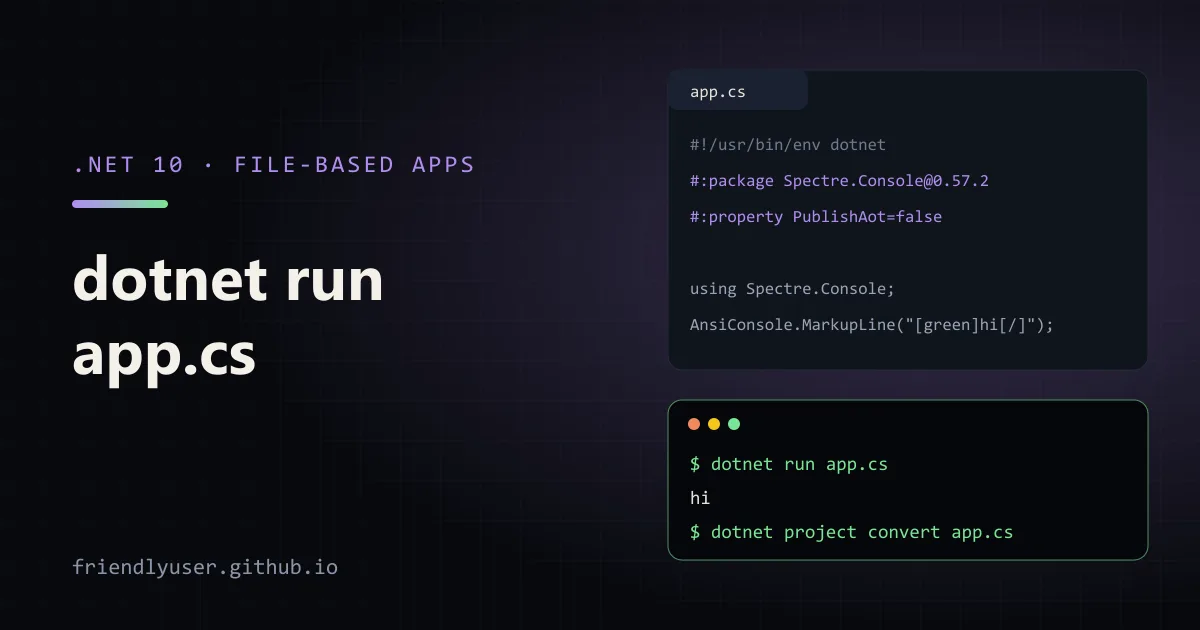
Since .NET 10, the SDK can build and run a single .cs file with no .csproj: dotnet run app.cs. Microsoft calls these file-based apps. The file holds top-level statements, and a few #: directives at the top replace what the project file used to say: NuGet packages, the SDK, and MSBuild properties. That makes C# workable for the small scripts and one-off tools you might otherwise write in Python or PowerShell, and when a script grows up, one command turns it into a normal project.
Everything here needs the .NET 10 SDK (10.0.100 or later). The C# in the examples is ordinary top-level-statement code, and I checked that it compiles and runs as a regular project. The #: directives and dotnet run file.cs behaviour are described from the SDK documentation.
Hello, file
Section titled “Hello, file”Console.WriteLine($"Hello from {System.Runtime.InteropServices.RuntimeInformation.FrameworkDescription}");dotnet run hello.csThere are three equivalent ways to run it:
dotnet run hello.csdotnet run --file hello.csdotnet hello.csThe first run takes a few seconds, because the SDK generates a project in memory, restores and builds it. Later runs reuse the cached build as long as the file, its directives and the SDK version haven’t changed, so they start much faster. The build output goes to a folder under your temp directory (<temp>/dotnet/runfile/...), not next to the script.
The generated project is the same one dotnet new console creates, so implicit usings and nullable reference types are on. Console, LINQ, File and HttpClient work without using lines.
Arguments for your app go after --:
dotnet run hello.cs -- --verbose input.txtInside the file they arrive in args, as in any top-level program.
A useful script with a NuGet package
Section titled “A useful script with a NuGet package”Here is a script that lists the largest folders under a directory, using Spectre.Console for the table:
#:package Spectre.Console@0.57.2
using Spectre.Console;
var root = args.Length > 0 ? args[0] : Directory.GetCurrentDirectory();var top = args.Length > 1 ? int.Parse(args[1]) : 10;
var sizes = new DirectoryInfo(root)    .EnumerateDirectories()    .Select(dir => (dir.Name, Bytes: SizeOf(dir)))    .OrderByDescending(x => x.Bytes)    .Take(top)    .ToList();
var table = new Table().AddColumn("Folder").AddColumn(new TableColumn("Size").RightAligned());foreach (var (name, bytes) in sizes)    table.AddRow(Markup.Escape(name), $"{bytes / 1024.0 / 1024.0:N1} MB");
AnsiConsole.MarkupLine($"[bold]Largest folders in[/] {Markup.Escape(root)}");AnsiConsole.Write(table);
static long SizeOf(DirectoryInfo dir){ var options = new EnumerationOptions { RecurseSubdirectories = true, IgnoreInaccessible = true }; return dir.EnumerateFiles("*", options).Sum(f => f.Length);}dotnet run dirsize.cs -- ~/src 5The output is a box-drawn table of folder names and sizes, largest first. Note Markup.Escape: Spectre.Console treats [ and ] as markup, so a folder name with brackets would otherwise break the output.
The directives
Section titled “The directives”Directives start with #: and must come before the first line of C# code (comments and blank lines are fine). The C# compiler ignores them; the SDK reads them to build the project.
#:package
Section titled “#:package”#:package Spectre.Console@0.57.2#:package Humanizer.Core@3.0.10Name@Version adds a PackageReference. Always pin a version: leaving it out only works when a Directory.Packages.props (central package management) above the file supplies one. @* takes the newest version, which is convenient for experiments and a bad idea for anything you’ll run again next month.
#:sdk Microsoft.NET.Sdk.WebThis picks the MSBuild SDK, Microsoft.NET.Sdk by default. With the Web SDK, a single file can be a complete web API, and the ASP.NET Core implicit usings come along:
#:sdk Microsoft.NET.Sdk.Web
var app = WebApplication.Create(args);
app.MapGet("/", () => new { message = "hello", at = DateTimeOffset.UtcNow });app.MapGet("/add/{a:int}/{b:int}", (int a, int b) => a + b);
app.Run();
dotnet run api.cs starts Kestrel, and curl http://localhost:5000/add/2/3 returns 5. That’s handy for a throwaway mock of a service you depend on. The Web SDK also picks up appsettings.json files next to the script.
#:property
Section titled “#:property”#:property LangVersion=preview#:property PublishAot=false#:property InvariantGlobalization=trueName=Value sets any MSBuild property, the same as a <PropertyGroup> entry. TargetFramework works too, if you need to target something other than the SDK’s default.
#:project
Section titled “#:project”#:project ../Shared/Shared.csprojReferences a regular project, so a script can call code from your main solution, for example to run a one-off data fix with the real domain types.
Shebang scripts on Linux and macOS
Section titled “Shebang scripts on Linux and macOS”On Unix-like systems a file-based app can be an executable script. Add a shebang as the very first line:
#!/usr/bin/env dotnet#:package Spectre.Console@0.57.2
using Spectre.Console;
AnsiConsole.MarkupLine($"[green]Hello[/] from {Environment.MachineName}");chmod +x greet.cs./greet.csThe kernel runs dotnet ./greet.cs, which is the shorthand form above. Three practical notes:
- The file must use LF line endings and no BOM. With CRLF, the system looks for an interpreter literally called
dotnet\r, and the error message is unhelpful. Add*.cs text eol=lffor script folders to.gitattributesif anyone edits them on Windows. - Arguments are passed through, but the
dotnethost may interpret ones that look like its own options (--help, for example). The SDK docs show anenv -S dotnet --variant for systems whoseenvsupports-S. - The script keeps its
.csextension, so editors still treat it as C#.
Publishing
Section titled “Publishing”dotnet publish dirsize.cs produces a standalone executable in an artifacts folder next to the file. File-based apps have Native AOT enabled by default, so the result is a single native binary that starts quickly and doesn’t need the .NET runtime installed. AOT has requirements: you need the platform’s native toolchain, and code that relies on unrestricted reflection may fail or produce warnings. If a package isn’t AOT-friendly, turn it off:
#:property PublishAot=falseConverting to a project
Section titled “Converting to a project”When a script grows past one file, or needs tests, convert it:
dotnet project convert dirsize.csThis creates a folder named after the app next to the script, containing a .csproj built from the directives and a copy of the .cs file without them. The #:package line becomes a PackageReference, #:property lines become properties, and so on. The original file is left alone, so check the result builds and then delete the original yourself.
Converting is one-way and cheap, which is the right mental model for file-based apps: start as a file, and the moment it needs a second file, it is a project.
Gotchas
Section titled “Gotchas”- Don’t put scripts inside a project folder. If the current directory contains a
.csproj,dotnet run file.csruns that project and passesfile.csto it as an argument, for backwards compatibility. Usedotnet run --file file.csto force file mode, or better, keep scripts in their own folder. - Parent folder build files apply.
Directory.Build.props,Directory.Packages.props,global.jsonandnuget.configin any parent directory affect the script. A repository-wideTreatWarningsAsErrorsor an old SDK pinned inglobal.jsoncan break a script that works elsewhere. - The build cache can lag behind changes. It is keyed on the file content, directives and SDK version. Changing a
Directory.Build.propsmay not trigger a rebuild;dotnet clean file.csfollowed bydotnet build file.csforces one. - One file in 10.0.100. In the first .NET 10 SDK, a file-based app is exactly one
.csfile; other.csfiles beside it are not compiled in. Later SDK feature bands document an#:includedirective for pulling in more files. Check your SDK version before relying on it. - Running the same script in parallel can fail with file-lock errors, because concurrent runs fight over the same build output. Build once with
dotnet build file.cs, then run the copies withdotnet run file.cs --no-build.
Further reading
Section titled “Further reading”© 2026 David Li · Home · Blog · RSS ·Classic site · Built with Astro, Starlight and three.js · Logos:Font Awesome Free (CC BY 4.0)