Running Services and Scheduled Jobs with systemd Units and Timers
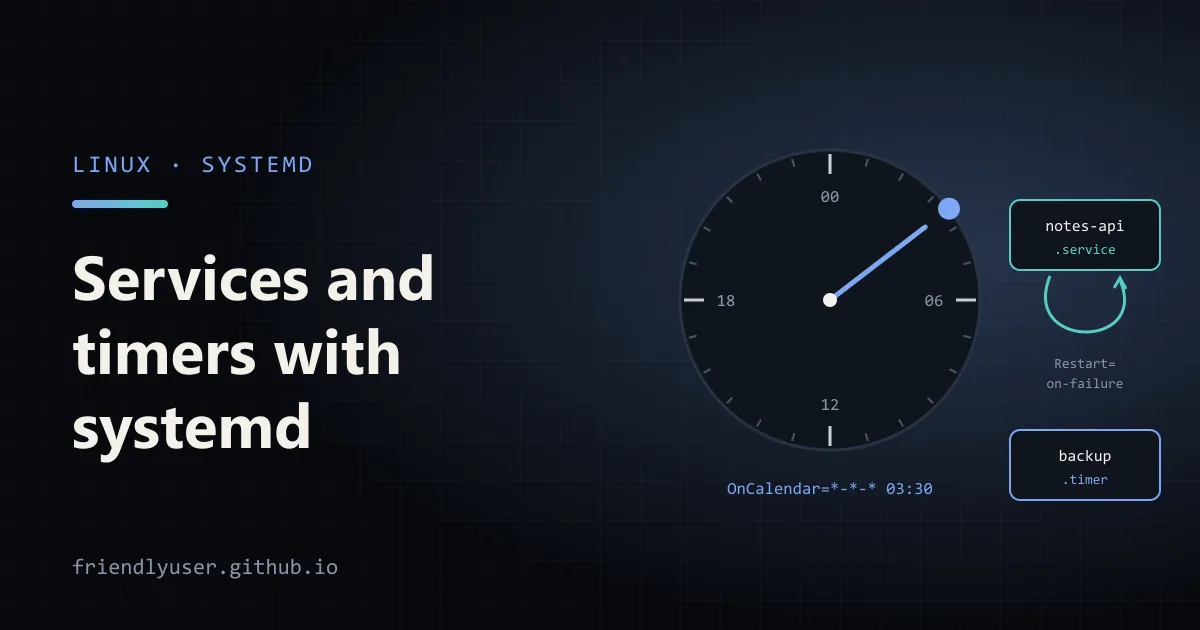
On almost every current Linux distribution, systemd is the process that starts everything else, and it’s also the simplest way to keep your own programs running. A short unit file gives a web app automatic restarts, logging, a dedicated user and sandboxing, with no process manager to install. A timer unit does the same for scheduled jobs and fixes most of what is awkward about cron.
This post writes a service for a small Python web app, a timer for its nightly backup, and a user-level timer you can try without root. The unit files were checked with systemd-analyze verify (systemd 249). Nothing here is new, so it works on any distribution from the last several years.
A service for a web app
Section titled “A service for a web app”Assume an app installed in /opt/notes-api, with a virtual environment and Gunicorn, running as a dedicated notes user. The unit file goes in /etc/systemd/system/notes-api.service:
[Unit]Description=Notes API (gunicorn)After=network-online.targetWants=network-online.targetStartLimitIntervalSec=300StartLimitBurst=5
[Service]Type=simpleUser=notesGroup=notesWorkingDirectory=/opt/notes-apiEnvironmentFile=/etc/notes-api/notes-api.envExecStart=/opt/notes-api/.venv/bin/gunicorn --bind 127.0.0.1:8000 --workers 3 app:appRestart=on-failureRestartSec=5sTimeoutStopSec=30NoNewPrivileges=yesProtectSystem=strictProtectHome=yesPrivateTmp=yesReadWritePaths=/var/lib/notes-api
[Install]WantedBy=multi-user.target
Going section by section:
[Unit] holds metadata and ordering. After=network-online.target with Wants= delays the start until the network is configured, which matters if the app connects to a database on startup. After= alone only orders; Wants= is what actually pulls the target in.
[Service] says how to run it:
Type=simple(the default) means the process inExecStartis the service and stays in the foreground. Don’t daemonise your app or wrap it innohup. systemd tracks the process, and its stdout and stderr go to the journal.ExecStartneeds the full path to the executable. There’s no shell involved, so pipes,&&and~don’t work. If you need a shell, call/bin/sh -c '...'explicitly.User=andGroup=drop root. Create the user first withuseradd --system --no-create-home notes.- The
Protect*,PrivateTmpandNoNewPrivilegeslines are cheap sandboxing.ProtectSystem=strictmakes the whole filesystem read-only for this service, soReadWritePaths=lists the directories it may write to.systemd-analyze security notes-apiscores a unit and lists further options.
[Install] is only used by systemctl enable. WantedBy=multi-user.target means “start this at boot on a normal multi-user system”.
Restart behaviour
Section titled “Restart behaviour”Restart=on-failure restarts the service if it exits with a non-zero code, is killed by a signal, or times out. It does not restart after a clean exit or after systemctl stop. The other common choice is Restart=always, which also restarts after a clean exit. That’s useful for workers that exit on purpose after a fixed number of jobs.
RestartSec=5s waits between attempts. The default is 100 ms, which turns a crash loop into a CPU-burning one.
The start limit stops endless loops. With StartLimitBurst=5 and StartLimitIntervalSec=300, once the unit has been started five times within five minutes, systemd refuses further starts and leaves it in a failed state. These two settings belong in [Unit], not [Service]; systemd-analyze verify warns Unknown key name 'StartLimitIntervalSec' in section 'Service' if you put them in the wrong place. Clear the failed state with systemctl reset-failed notes-api once you’ve fixed the cause.
The environment file
Section titled “The environment file”/etc/notes-api/notes-api.env holds configuration and secrets, one KEY=value per line:
DATABASE_URL=postgresql://notes@localhost/notesSECRET_KEY=change-meLOG_LEVEL=infoMake it readable by root only (chmod 600). systemd reads the file as root before dropping privileges, so the service user doesn’t need access to it. Lines starting with # are comments. The file is not a shell script, so there’s no command substitution: $(...) is passed through as literal text. Prefix the path with - (EnvironmentFile=-/etc/notes-api/extra.env) to make a file optional. For a single value, Environment=LOG_LEVEL=info works inline.
Starting it
Section titled “Starting it”sudo systemctl daemon-reload # after creating or editing any unit filesudo systemctl enable --now notes-api # start now and at every bootsystemctl status notes-apistatus shows whether it is running, the main PID, memory use, and the last few log lines. After changing the unit file, run daemon-reload again and then systemctl restart notes-api. Forgetting the reload is the most common reason “my change did nothing”.
For small changes to a unit you don’t own, such as one installed by a package, use sudo systemctl edit nginx. It creates a drop-in override in /etc/systemd/system/nginx.service.d/override.conf that survives package upgrades.
Reading logs with journalctl
Section titled “Reading logs with journalctl”Everything the service writes to stdout and stderr lands in the journal, tagged with the unit name:
journalctl -u notes-api # all logs for the unitjournalctl -u notes-api -f # follow, like tail -fjournalctl -u notes-api -b # since the last bootjournalctl -u notes-api --since "1 hour ago"journalctl -u notes-api -p warning # warning and worsejournalctl -u notes-api -o cat # messages only, without timestamps and hostnamessystemd’s own messages about the unit appear in the same stream: start, stop, “Main process exited, code=exited, status=1/FAILURE”, and “Scheduled restart job”. That’s usually the fastest way to see why a service keeps restarting.
Timers instead of cron
Section titled “Timers instead of cron”A timer is a .timer unit that starts a .service unit on a schedule. Here is the nightly backup. First the service, /etc/systemd/system/notes-backup.service:
[Unit]Description=Back up the notes database
[Service]Type=oneshotUser=notesEnvironmentFile=/etc/notes-api/notes-api.envExecStart=/opt/notes-api/bin/backup.sh
Type=oneshot means the job runs to completion, and the unit counts as active until it exits. It has no [Install] section because the timer starts it, not the boot process.
Then the timer, /etc/systemd/system/notes-backup.timer:
[Unit]Description=Nightly notes backup
[Timer]OnCalendar=*-*-* 03:30:00Persistent=trueRandomizedDelaySec=15m
[Install]WantedBy=timers.target
A timer starts the service with the same name by default (notes-backup.timer starts notes-backup.service). Set Unit= in [Timer] to point it at another one.
OnCalendar=is the schedule, in systemd’s calendar syntax (next section).Persistent=truerecords the last run on disk. If the machine was off at 03:30, the job runs as soon as the timer starts again at boot. Plain cron simply skips missed runs.RandomizedDelaySec=15madds a random delay of up to 15 minutes, so a fleet of machines doesn’t hit the backup server at the same second.
Enable the timer, not the service:
sudo systemctl daemon-reloadsudo systemctl enable --now notes-backup.timersystemctl list-timers # next and last run for every timersudo systemctl start notes-backup.service # run the job once, right nowjournalctl -u notes-backup # its outputWhat you get over cron:
- Logs go to the journal with exit status, rather than to a local mail spool nobody reads.
- No overlapping runs. If the job is still running when the timer fires again, systemd doesn’t start a second copy.
- Same environment as a service:
User=,EnvironmentFile=, sandboxing and resource limits (MemoryMax=,CPUQuota=) all apply. - Testable on demand with
systemctl start, in exactly the environment the timer uses. - Missed runs are caught up with
Persistent=true.
What you lose is brevity: two files instead of one line. For a one-off, systemd-run --on-calendar="*-*-* 03:30" /path/to/script creates a transient timer without writing any files. It’s gone after a reboot.
Calendar expressions, and how to check them
Section titled “Calendar expressions, and how to check them”The format is DayOfWeek Year-Month-Day Hour:Minute:Second, with * for “any”, ranges with .., lists with , and repetition with /. Some examples:
| Expression | Meaning |
|---|---|
*-*-* 03:30:00 | Every day at 03:30 |
Mon..Fri 09:00 | Weekdays at 09:00 |
*:0/15 | Every 15 minutes |
hourly, daily, weekly | Shorthands for the start of each hour, day or week |
Sun *-*-1..7 04:00 | The first Sunday of every month at 04:00 |
*-*-* 03:30:00 Europe/Berlin | 03:30 in a specific time zone |
Don’t guess; systemd-analyze calendar parses an expression and prints when it fires next:
$ TZ=UTC systemd-analyze calendar --iterations=2 \n --base-time='2026-05-31 12:00 UTC' 'Sun *-*-1..7 04:00' Original form: Sun *-*-1..7 04:00Normalized form: Sun *-*-01..07 04:00:00 Next elapse: Sun 2026-06-07 04:00:00 UTC Iter. #2: Sun 2026-07-05 04:00:00 UTC--base-time pins “now” so the output is reproducible; leave it out to calculate from the current time. (I trimmed the “From now” lines.) The “first Sunday of the month” case is a good example of where cron’s syntax fails: in cron, setting both day-of-month and day-of-week means either matches, not both.
Timers can also be relative instead of wall-clock: OnBootSec=5min fires five minutes after boot, and OnUnitActiveSec=1h fires an hour after the service last started. Combined, they give “every hour, starting five minutes after boot”.
User units: services without root
Section titled “User units: services without root”Every logged-in user has their own systemd instance. Units in ~/.config/systemd/user/ run as you, need no sudo, and are managed with systemctl --user. Here is a complete example you can try on any systemd-based machine: a timer that logs disk usage of your home directory every 15 minutes.
~/.config/systemd/user/disk-report.service:
[Unit]Description=Log disk usage of the home directory
[Service]Type=oneshotExecStart=/usr/bin/df -h %h~/.config/systemd/user/disk-report.timer:
[Unit]Description=Disk usage report every 15 minutes
[Timer]OnCalendar=*:0/15Persistent=true
[Install]WantedBy=timers.target
%h is a systemd specifier for the user’s home directory. Then:
systemctl --user daemon-reloadsystemctl --user enable --now disk-report.timersystemctl --user list-timerssystemctl --user start disk-report.service # run it once nowjournalctl --user -u disk-report # see the df outputBy default your user instance stops when your last session ends, which takes your services and timers with it. To keep them running after you log out, and start them at boot, enable lingering once:
sudo loginctl enable-linger "$USER"User services that should start at login use WantedBy=default.target in [Install]. multi-user.target doesn’t exist in the user instance.
To clean up the example: systemctl --user disable --now disk-report.timer, delete the two files, and run systemctl --user daemon-reload.
Gotchas
Section titled “Gotchas”- Edit, then
daemon-reload. systemd caches unit files. When you forget,systemctl statuswarns that the unit file changed on disk and tells you to reload. - Enable the timer, not the service. Enabling a service with no
[Install]section prints a warning and does nothing. %in unit files is a specifier. A literal percent sign, as indate +%F, has to be written%%.- No shell in
ExecStart. Redirection, globs and~are passed literally. Wrap the command in a script, or use/bin/sh -c. - Time zones.
OnCalendaruses the system time zone unless you add one to the expression. Check withtimedatectl. Restart=alwayswith a broken config keeps hitting the start limit. Look atsystemctl statusfor “start request repeated too quickly”, fix the cause, thenreset-failed.
Further reading
Section titled “Further reading”© 2026 David Li · Home · Blog · RSS ·Classic site · Built with Astro, Starlight and three.js · Logos:Font Awesome Free (CC BY 4.0)